How to Build a Skill With Your AI Agent
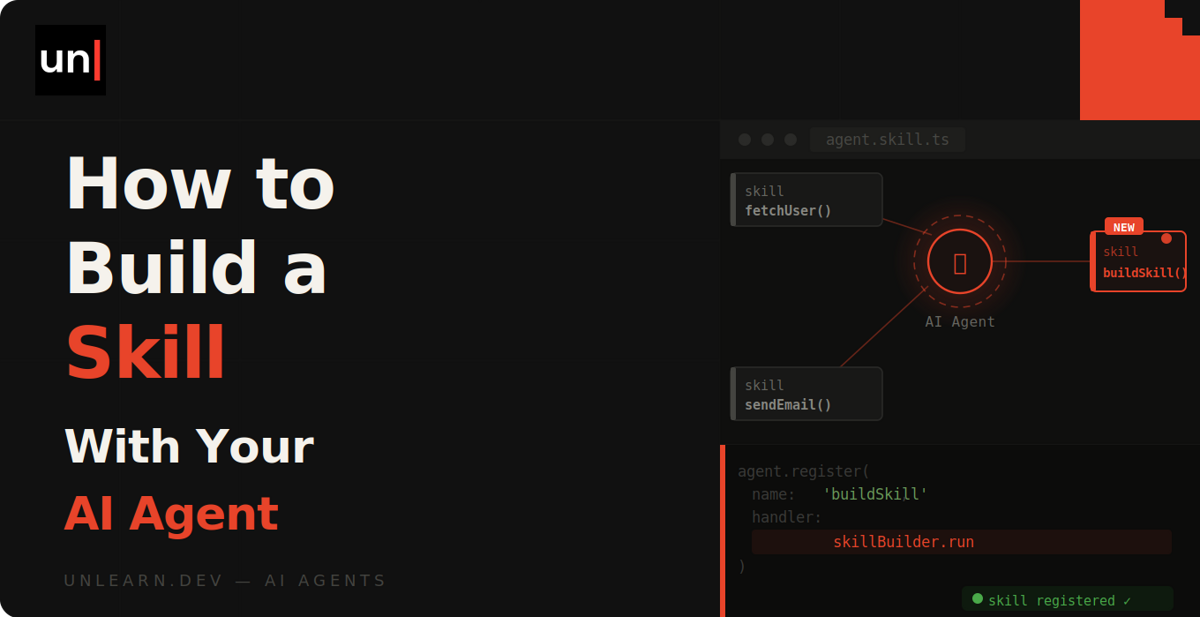
A skill is a set of instructions you write down for your coding agent and save as a SKILL.md file in its own folder. Each one starts with a short description of when it applies, and your agent reads the full instructions automatically whenever a task matches that description. So instead of explaining how you like a job done every single time, you write it out once and the agent leans on it from then on.
The nice bit is you don't have to write one by hand. You can ask your agent to build its own skill, then tidy it up from there. Let's take a look.
Describe it, don't write it
Your first instinct might be to open an editor, create a SKILL.md, and start writing out instructions and frontmatter by hand. That works, but it's slower than it needs to be, and you'll spend most of your time on formatting instead of the actual instructions.
Instead, just describe the task to your agent and let it write the skill. In Claude Code, that's a prompt like this:
I keep asking you to turn a git diff into release notes in our changelog
style. Turn that into a skill. Put it in ~/Code/skills/changelog with a
SKILL.md, and keep the instructions tight.
You'll get back a folder with a SKILL.md inside it. That file has a tiny bit of YAML at the top (a name and a description, so the agent knows when to reach for it) and then your instructions in plain Markdown. We won't fuss over the format here, since the agent handles most of it for you.
Symlink it into place
Before you can check whether the skill actually works, your agent needs to find it. This is where it's worth being a bit deliberate.
Keep all your skills in one folder, somewhere like ~/Code/skills, so there's only ever one copy of each to edit. Then symlink each skill into wherever your agent looks for them, and you can edit one file while every agent picks up the change.
Claude Code
Claude Code reads skills from ~/.claude/skills for personal skills (available in every project), or from a .claude/skills folder inside a project to share with your team. Symlink yours in like this:
ln -s ~/Code/skills/changelog ~/.claude/skills/changelog
Codex
Codex uses ~/.codex/skills for personal skills, or .codex/skills per project. It'll also automatically scan a .agents/skills folder, walking up from your current directory to the repo root, so that's a handy shared spot if you want one folder picked up across tools.
ln -s ~/Code/skills/changelog ~/.codex/skills/changelog
Cursor
Cursor keeps skills in .cursor/skills inside your project. One catch: there's no global skills folder in Cursor like there is for Claude Code or Codex, so you'll symlink (or drop) the skill into each project where you want it.
ln -s ~/Code/skills/changelog .cursor/skills/changelog
Check what it actually built
Once the skill's symlinked in, your agent can find it, so the next step is to actually use it rather than just read it back. Don't assume the instructions are right because they look right.
The agent wrote the skill from what you described, so the first draft is usually a little off. Maybe it's too verbose, maybe it missed a step you do every time, or maybe it invented a rule you never asked for.
Refine it
Run the skill on a real diff and see how it does:
Use the changelog skill to write release notes for the staged diff.
Say everything comes back lumped under one heading, when you wanted it split up. You've got two options here, and both are fine.
You can nudge the agent. It's the same conversation, so tell it what went wrong and ask it to update the skill:
The release notes skill is grouping everything under one heading. Update it
to split changes into Added, Fixed and Changed sections.
Or you can just open the SKILL.md and edit it by hand. For small tweaks, that's often quicker than explaining what you want, and there's nothing precious about the file the agent generated.
Go back and forth until it behaves the way you'd do the task yourself. That's the whole goal: the skill should capture how you do something, not a generic version of it.
Give it arguments
Most skills get more useful when you can pass them something. You invoke a skill like a slash command, and anything you type after it gets handed to the skill as input.
You wire this up with two small additions. Add an argument-hint to the frontmatter so you know what to pass, and reference $ARGUMENTS in the instructions where you want that input to land:
---
name: changelog
description: Turn a git diff into release notes in our changelog style.
argument-hint: "[version]"
---

Write release notes for version $ARGUMENTS based on the staged diff.
Now you can run it with a version number, and that value drops straight into the instructions:
/changelog v2.1.0
And of course, you don't have to add this by hand either. Ask the agent to "make this skill take a version number as an argument" and it'll wire up the argument-hint and $ARGUMENTS for you.
Commit and share
A skill is just a folder of text files, so sharing it is the same as sharing any code. Initialise a repo where your skills live, commit, and push it up:
cd ~/Code/skills
git init
git add changelog
git commit -m "Add changelog skill"
git push
Because SKILL.md is a shared standard across agents, anyone who clones your repo can use the same skill whether they're on Claude Code, Codex or Cursor. You write it once, and it travels.
One command to install it
Asking people to clone a repo and symlink folders is a bit of a faff, though. There's a nicer way.
The skills CLI lets anyone install a skill straight from your GitHub repo, into whichever agent they use, without cloning anything:
npx skills add yourname/skills
You can point it at specific agents if you like:
npx skills add yourname/skills --agent claude-code --agent cursor
It reads the SKILL.md files in your repo and drops them into the right place for each agent. There's npx skills list to see what's installed and npx skills update to pull in changes later, so once your skill is good, sharing it is genuinely one line.
And that's it, start to finish. You describe the skill, the agent builds it, you symlink it in, try it, fix what's off, then share it. Do it once and you'll start spotting little tasks everywhere that are begging to be turned into skills.